There are two ways.
- Notepad, which is already on your PC. Right-click the file, choose Open with, then Notepad. On Windows 11 it formats the basics, like headings, bold, and tables. Checklists, code, and quotes still show up as symbols, and switching Notepad’s view can rewrite parts of your file. On Windows 10 you get the raw text.
- Italics, free for reading. It opens the whole file as a clean document, checklists, tables, and code included, and lets you edit it like you would in Word.
What an .md file is
A file ending in .md is a Markdown file. It’s plain text with a few symbols that stand in for formatting. A line starting with # is a heading, **word** means bold, a line starting with - is a bullet point, and - [ ] is a checkbox.
AI tools write this way all the time. ChatGPT, Claude, and Gemini format their answers in Markdown behind the scenes, so when you download or export something from them, there’s a good chance you get an .md file. Windows doesn’t always know what to do with one, which is why double-clicking it sometimes just asks you to pick an app.
Way 1: Open it in Notepad
- Right-click the .md file and choose Open with, then Choose another app.
- Pick Notepad.
- Tick Always use this app to open .md files if you want double-clicking to work from now on.
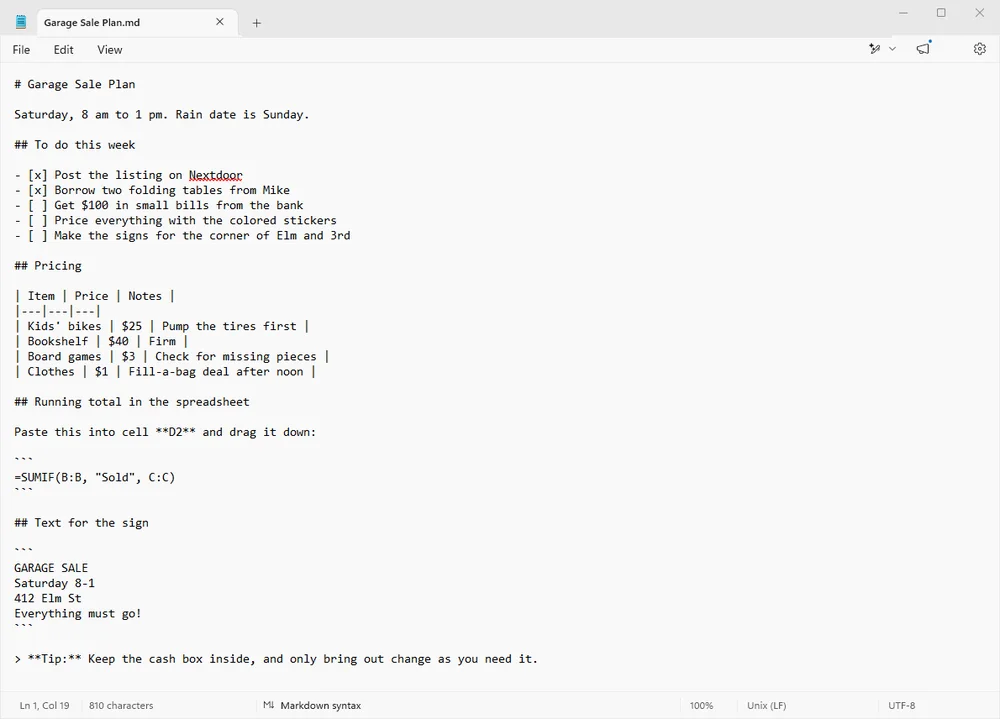
On Windows 11, Notepad formats Markdown on its own, with formatting switched on by default. The button in the bar along the bottom of the window flips between Formatted and Markdown syntax, and so does the View menu.
Here’s what that looks like with a typical file from ChatGPT: a to-do list, a price table, a spreadsheet formula, and the text for a sign. I tested it in Notepad version 11.2607, the version on my PC as I write this.
![Notepad on Windows 11 with formatting on. The headings are large and the table is drawn as a grid, but the checklist still shows [x] and [ ], both code sections keep their triple-backtick fences, the tip line still starts with > and **, and the sections are crammed together with no spacing.](images/notepad-markdown-formatted-view.webp)
[x] and [ ], the code keeps its ``` fences, the tip keeps its > and **, and everything is jammed together.On Windows 10, or with formatting turned off, there’s no formatting at all. You see every symbol:
The warning worth taking seriously
When a file has anything Notepad can’t format, switching views pops up this:
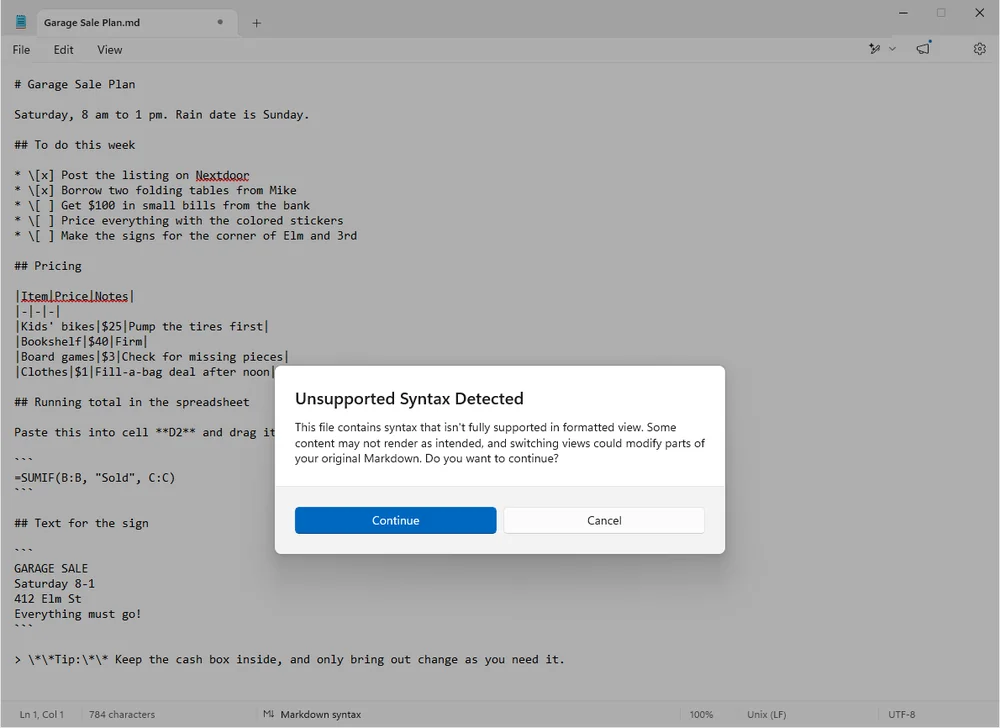
It means it. I clicked Continue, then switched back to the raw view without typing a single character. Notepad had already rewritten the file. The checklist items became \[x], which no app reads as a checkbox anymore. **Tip:** became \*\*Tip:\*\*, which shows up as literal asterisks instead of bold. The table got squashed, too.
![The same file in Notepad after switching to formatted view and back, with nothing typed. The checklist lines now read * \[x] and * \[ ], the tip reads \*\*Tip:\*\* with escaped asterisks, and the table rows are compressed with no spaces around the pipes.](images/notepad-markdown-rewritten-after-switching.webp)
Nothing is lost until you save. But if you do save, that rewritten version is what ChatGPT, Claude, and every other app will see from then on. My advice: if Notepad shows you that warning, click Cancel.
One more thing: if you see raw symbols on Windows 11 even with formatting on, your Notepad is probably out of date. Microsoft fixed formatting for .md files in a mid-2026 update. Open the Microsoft Store, click Library, then Get updates.
Way 2: Open it in Italics
This is the app I build, so weigh my opinion accordingly. I built it because of exactly what’s above. Here’s the same file:
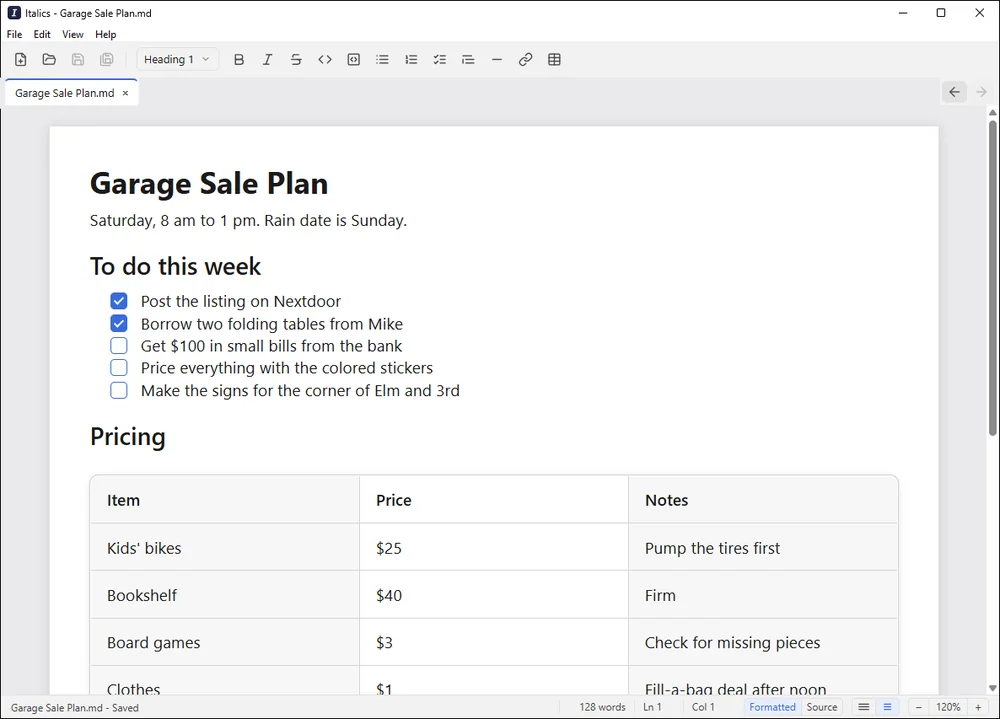
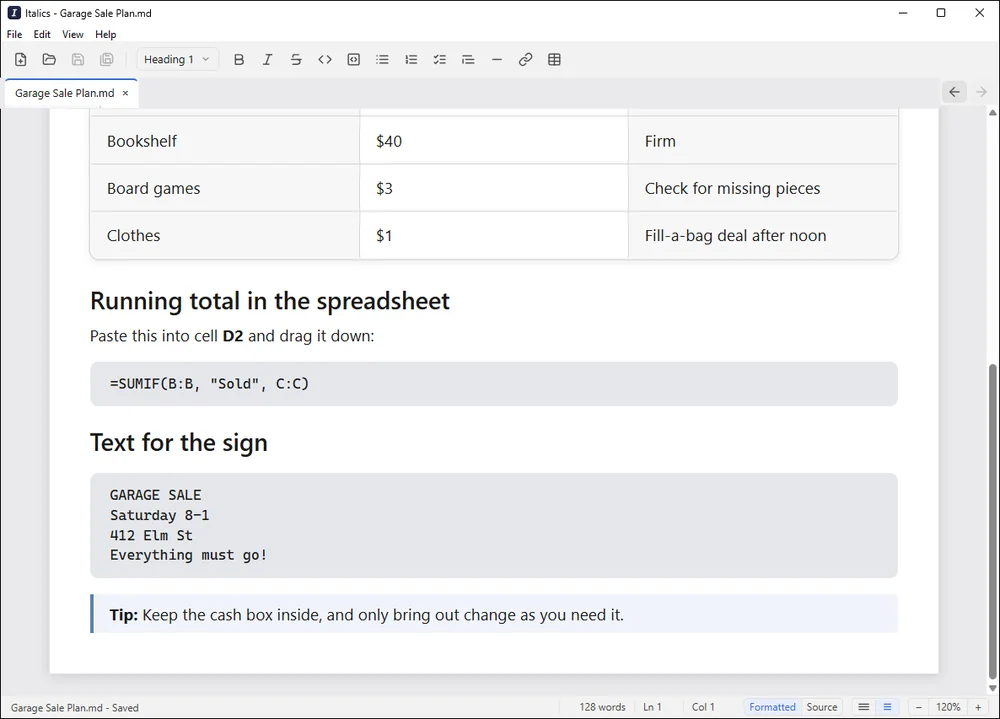
You never see a symbol, even while you’re typing. There’s a toolbar for bold, headings, lists, and tables, and when you save, it’s still an ordinary .md file, written cleanly, so ChatGPT and Claude read it exactly as you left it. Reading is free with no account. Editing is a paid upgrade.
Open your .md files like documents
Italics runs on Windows. Reading any file is free, forever.
Download ItalicsMake an app the default for .md files
If you skipped the checkbox earlier, or you want to switch apps later: open Settings, go to Apps, then Default apps. Type .md into the search box at the top, click the result, and choose the app you want. Microsoft gives the same steps for Windows 10 and 11.
Other ways to open it
VS Code
If you write code, you probably already have it. Open the file and press Ctrl+Shift+V for a formatted preview, or Ctrl+K then V to see the preview next to the raw text. It’s excellent at this. It’s also a programmer’s editor, which is a lot of app to install just to read a garage sale plan.
Microsoft Word
Word doesn’t understand Markdown. You can open the file with it, but you get the same raw text Notepad would show, symbols and all.
Online Markdown viewers
Plenty of websites will show a pasted or uploaded .md file formatted. They work, but you’re handing your file to someone else’s server. Fine for a recipe. Think twice for anything with names, numbers, or work in it.